Columns UI 3.7.0 released
• 3 min read
Columns UI is an alternative UI for the foobar2000 audio player on Windows. Columns UI is written in C++, uses the Win32 API and is open source on GitHub.
Here’s a summary of the most notable additions and changes in Columns UI 3.7.0, released today.
Per-layout main window sizes
Layout presets can now optionally remember their main window size and position independently of other presets.
If this is enabled for a layout preset, when you switch to that preset, the main window size and position from when that preset was last used will be restored:
This is not enabled for existing layout presets by default. To enable it for a particular layout preset, navigate to Preferences › Display › Columns UI › Layout › Layout. Then, select the preset from the Active preset drop-down list, click Properties, tick Remember separate window size and position for this preset and click OK.
Presets with the option disabled share a single main window size and position as previously.
Additional tracking modes in context-viewing panels
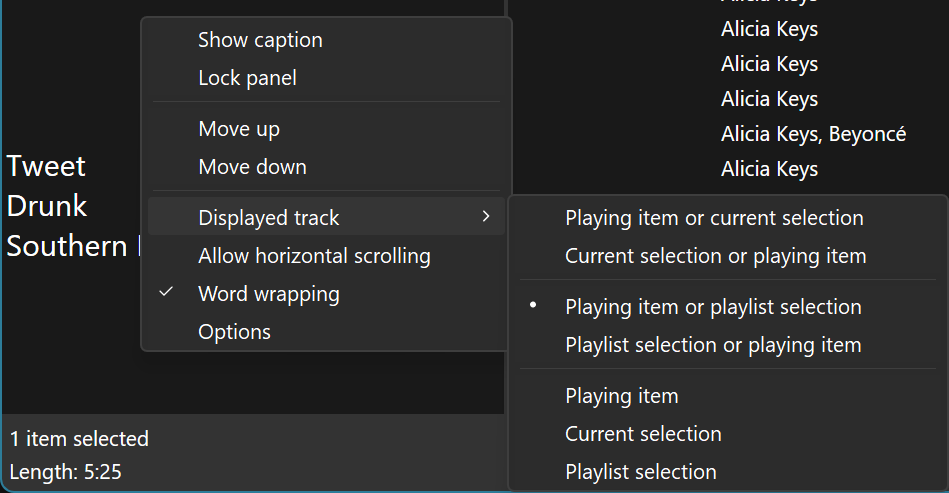
Updates have been made to the item tracking modes available in the Artwork view, Item details and Item properties panels.
In Artwork view and Item details, two new tracking modes have been added:
- Current selection or playing item
- Playlist selection or playing item
These use the playing item as a fallback when there is no selection of the specified type. This is in contrast to the previous automatic tracking modes, which prioritised the playing item over the relevant selection type.
For clarity, the previous automatic tracking modes have been renamed Playing item or current selection and Playing item or playlist selection.
In Item properties, the list of tracking modes available has been expanded to match Artwork view and Item details. That means the same playlist-selection tracking modes are now available, and tracking modes that prioritise the selection over the playing item are also available.
Playlist-specific fields in Item details
When Item details is tracking the playlist selection, playlist-specific title-formatting fields are now available. That means fields like %list_index%, %queue_index% and %isplaying% are now available for playlist selections.
Additionally, dynamic track info is now available for the playlist selection. This means that, if the selected playlist item is playing, playback-related fields like %playback_time% are available, %bitrate% updates dynamically for variable-bit-rate tracks, and dynamic metadata is available for supported streams.
New fallback main menu when menu toolbar is removed
When there is no menu bar in the toolbar area or in the layout, pressing Alt or F10 now shows the main menu as a pop-up menu in the top-left corner of the main window:
To open the menu with hidden items shown, press Shift+Alt instead of Alt or F10.
You can also directly access each top-level menu using its access key combination (e.g. Alt+F for the File menu or Shift+Alt+F for the File menu with hidden items shown).
Improved command picker in the Buttons toolbar
The list of commands in the Buttons toolbar command picker can now be filtered using a search box:
Additionally, tooltips are now shown for truncated items.
Other smaller improvements have also been made to the command picker and are detailed in the release notes for version 3.7.0-beta.1.
Resizeable dialogues
These dialogues are now resizeable and restore their last size and position the next time they’re opened:
- Add new group
- Edit group
- Options – Buttons
- Select a command – Buttons
- Options – Item details
- Options – Item properties
- Export settings
- Select settings to import
- FCL import results
Other changes
There were several other smaller improvements and bug fixes in Columns UI 3.7.0 – see the release notes for version 3.7.0-beta.1 onwards for full details.
How to update
If you currently have Columns UI installed, you can update to the latest version using the Help › Check for updated components command in foobar2000.
If you have foobar2000 installed and want to add Columns UI to it, download Columns UI from the Columns UI page, open foobar2000, navigate to Preferences › Components, click the Install… button and select the downloaded file. Alternatively, if file associations are set up, you can simply double-click the downloaded component package.
(And if you don’t have foobar2000 at all, you can download it from the foobar2000 downloads page.)