Columns UI 3.5.0 released
• 5 min read
Columns UI is an alternative UI for the foobar2000 audio player on Windows. Columns UI is written in C++, uses the Win32 API and is open source on GitHub.
Here’s a summary of the most notable additions and changes in Columns UI 3.5.0, released today.
A search bar built into the playlist view
A new search bar has been added to the playlist view, allowing you to quickly search the current playlist:
The search bar is essentially a more polished version of Typefind panel. It can be opened by pressing Ctrl+F or F3 while the playlist view is focused (as long as those key combinations are not assigned to keyboard shortcuts at Preferences › Keyboard Shortcuts).
It can also be opened using the View › Playlist view › Search playlist menu item.
The search bar can be configured at Preferences › Display › Columns UI › Playlist view › Search:
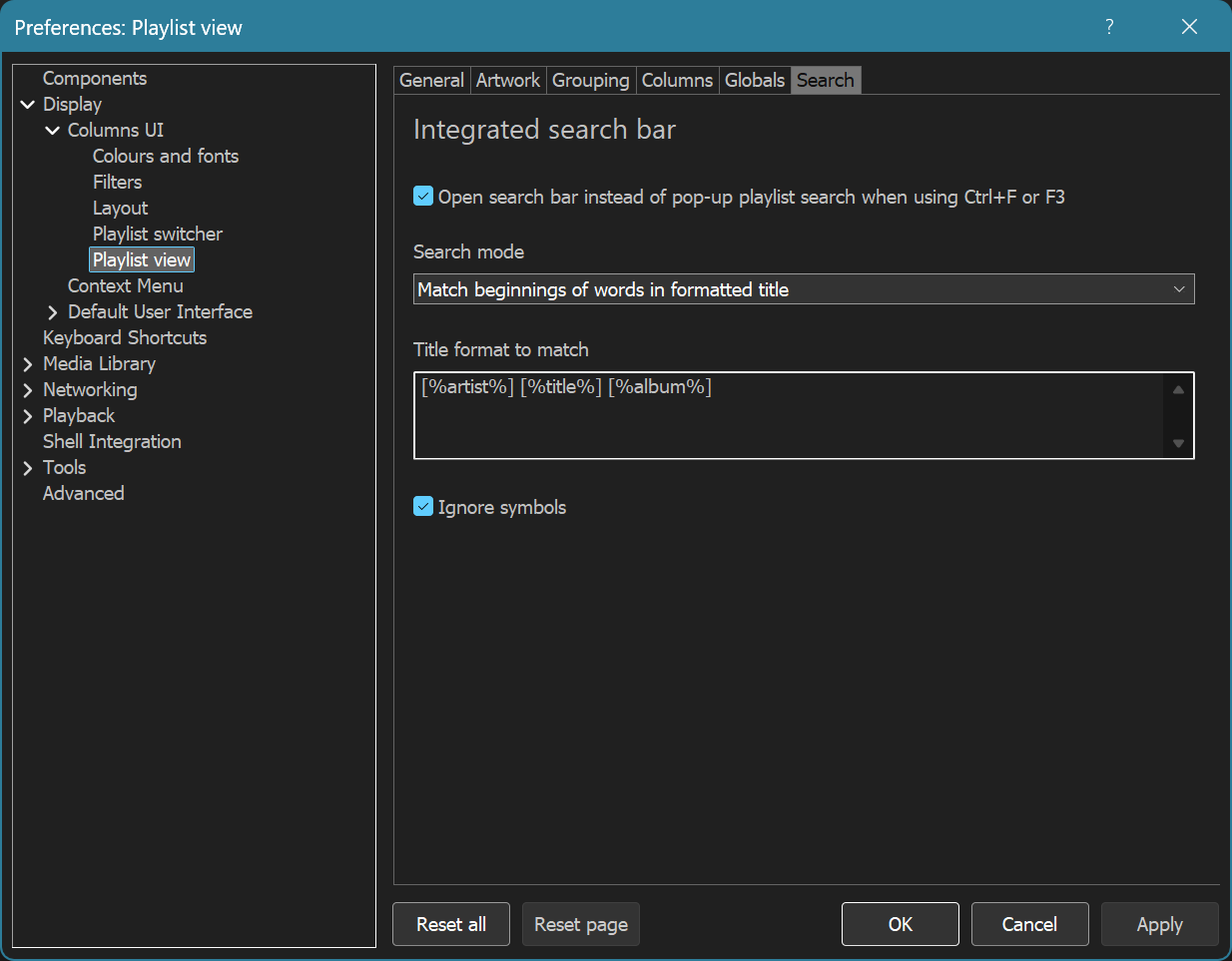
The default search mode is Match beginnings of words in formatted title, with Title format to match set to [%artist%] [%title%] [%album%]. This splits the typed text into words and checks that each word matches the start of a word in the formatted title. For example, an input of ‘cold yel’ would match the song Yellow by Coldplay, while ‘old yel’ would not.
The search mode ‘Match anywhere in formatted title’ is similar but allows typed words to match anywhere in the formatted title, and so in this case typing ‘old yel’ would match the song Yellow by Coldplay.
The third available search mode is Use query language. This instead allows entering queries using the foobar2000 query language (for example, ARTIST IS coldplay).
When the search box is focused, you can use Down or F3 to navigate to the next result and Up or Shift+F3 to navigate to the previous result.
You can also press Enter to play the current item or Ctrl+Enter to add it to the playback queue. Esc will close the search bar.
Customisation of lines next to playlist view group headings
Horizontal lines next to group headings in the playlist view can now be customised using the global style script. The colour of the lines can be changed, or they can be turned off if you prefer.
To turn the lines off, put this in the global style script (found at Preferences › Display › Columns UI › Playlist view › Globals › Style script) and press the Apply button:
$set_style(group-line,false)If you’re looking to change the colour of the lines, this is an example of making them red:
$set_style(group-line,true,$rgb(255,0,0))These examples can also be found in the style script documentation.
%is_light% and %is_dark% variables in the playlist view
Two new fields, %is_dark% and %is_light%, are now available in the playlist view display, style, sorting and global variables scripts.
%is_dark% is defined when dark mode is active and %is_light% is defined when light mode is active. The fields can be used with $if() for styling conditional on the current mode.
This example varies the group heading line colour depending on whether dark mode is active:
$set_style(group-line,true,$if(%is_dark%,$rgb(100,100,100),$rgb(150,150,150)))The ability to lock the main window size
A new main menu command has been added to lock the main window size, preventing it from being resized using its border. (Maximising and restoring the window is still allowed.)
This was a frequently requested feature and can be used to prevent accidental resizing of the main window or to make it more difficult for other people that use the same device to resize the window.
The new menu command can be found at View › Lock window size.
New row and column resizing behaviour
The behaviour when resizing a row or a column containing two or more unlocked panels was changed in new installations so that the panels maintain their proportional size. This video shows the old behaviour (top window) and the new behaviour (bottom window):
This was changed as the old behaviour was unconventional.
Note that locked panels are not automatically resized, so there is no change in behaviour for them.
The new behaviour is not automatically enabled for installations that have been upgraded from an older version of Columns UI to avoid unwanted layout changes. To switch to the new behaviour, disable the Use non-proportional panel sizing (deprecated) option found at Preferences › Display › Columns UI › Layout › Misc.
Customisable fonts in more toolbars
The font used in the menu toolbar and the Buttons toolbar can now be changed. Here’s an example of those toolbars using Comic Sans MS:
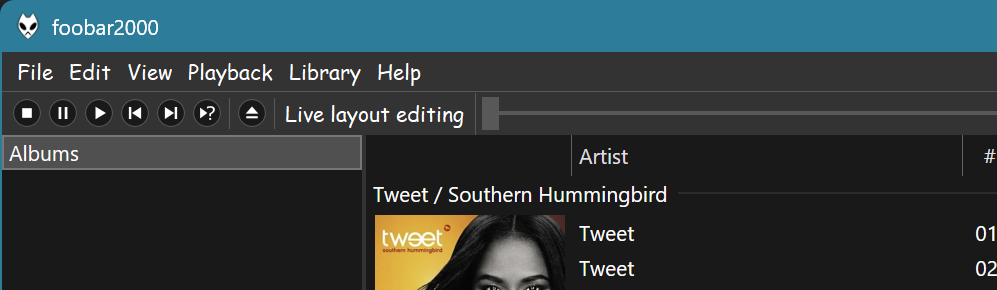
(Note that the menu toolbar font only applies to the toolbar itself and not any opened menus.)
Improved keyboard shortcut support in text inputs
A subset of configured keyboard shortcuts now work in the Filter search toolbar and in inline editing text inputs in the playlist view, playlist switcher, Filter panel and Item properties.
This allows common shortcuts such as Ctrl+P (for Preferences) to work while not interfering with typing and manipulating text.
An updated compiler and removed support for Windows 7, 8 and 8.1
Columns UI is now built using Visual Studio 2026, toolset version 14.51 (an upgrade from Visual Studio 2022, toolset version 14.43). Binaries built with the new toolset version require Windows 10 or newer. Hence, Columns UI no longer works on Windows 7, 8 and 8.1.
If you’re still on Windows 7, 8 or 8.1, you should remain on Columns UI 3.4.1 (or an older version).
If you’re using Wine, you should ensure that you are on the latest version of Wine and the Windows version is set to 10 or 11 in winecfg.
Other changes
There were several other smaller changes in Columns UI 3.5.0 – see the release notes from version 3.5.0-alpha.1 onwards for full details.
How to update
If you currently have Columns UI installed, you can update to the latest version using the Help › Check for updated components command in foobar2000.
If you have foobar2000 installed and want to add Columns UI to it, download Columns UI from the Columns UI page, open foobar2000, navigate to Preferences › Components, click the Install… button and select the downloaded file. Alternatively, if file associations are set up, you can simply double-click the downloaded component package.
(And if you don’t have foobar2000 at all, you can download it from the foobar2000 downloads page.)